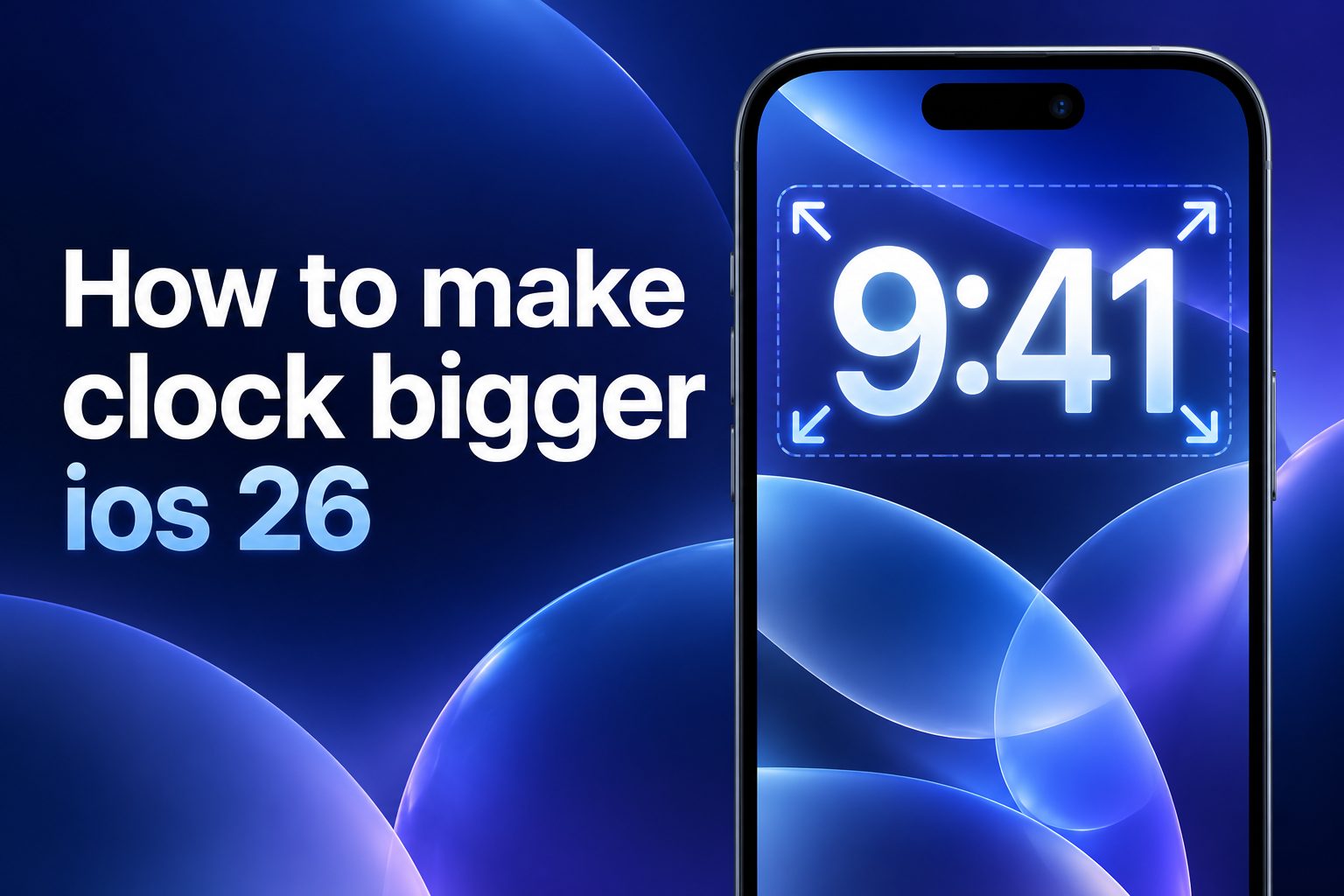
Making the clock bigger in iOS 26 can make your iPhone easier to read at a glance, especially when you use it from a distance, wake up during the night, or prefer a cleaner Lock Screen. The exact options available can vary with your iPhone model, wallpaper, and iOS 26 version, but the main approach is to customize the Lock Screen rather than look for a separate clock-size setting. This guide explains how to make the clock bigger in iOS 26, how wallpaper layout affects it, what to do when the option is unavailable, and how to improve visibility without making your Lock Screen feel crowded.
How the iOS 26 Lock Screen Clock Works
The Lock Screen clock is part of Apple’s wallpaper customization system. It is not treated like ordinary text in Settings, so you usually cannot choose a precise font size from a slider. Instead, iOS adjusts the clock’s appearance through Lock Screen editing tools, font choices, wallpaper composition, and available layout controls.
On supported Lock Screen designs, the clock may appear larger when there is more open space in the upper part of the wallpaper. A busy photo, a large subject, or several widgets can reduce the visual space available for the time. This is why two Lock Screens can look very different even when they use the same font.
Why a Bigger Clock Can Be Helpful
A larger clock is not only a visual preference. It can improve daily usability for people who want to check the time quickly without unlocking their phone. It is particularly useful in low light, while charging, when using StandBy, or when the phone is placed across a desk.
A clearer clock can also reduce the need to add extra Lock Screen widgets just to see basic information. Instead of creating a crowded layout, you can make the time more noticeable and keep the screen simple.
Make the Clock Bigger Through Lock Screen Customization
Start by waking your iPhone and touching and holding the Lock Screen. If Face ID is enabled, unlock the phone first without swiping away from the Lock Screen. Tap Customize, then choose Lock Screen rather than Home Screen.
Tap the time display near the top of the screen. Depending on the current wallpaper and iOS 26 features available on your device, you may see options for changing the clock font, weight, color, or layout. Select a bolder font style if a direct larger-size option is not shown. A thick, clean typeface often appears much larger and is easier to read than a narrow or decorative style.
Look for handles, layout controls, or a resize option around the clock area. If iOS 26 offers a larger clock layout for your selected wallpaper, drag or adjust the clock as prompted. Preview the result before saving. Tap Done when the layout looks right.
Choose a Wallpaper That Leaves Room for the Clock
Wallpaper choice is one of the biggest factors in making the clock look larger. A photo with a clear sky, plain wall, calm water, or soft background near the top gives the clock more visual breathing room. It also makes white or brightly colored time text easier to see.
Avoid images with faces, text, buildings, or detailed objects directly behind the clock. Even if the time is technically the same size, it can seem smaller when the background is visually busy. Crop the photo so the main subject sits lower on the screen, then return to the Lock Screen editor to check the result.
Use a Clock Font With More Visual Weight
When you cannot physically enlarge the clock, font weight is the next best solution. A heavier font makes each number occupy more space and improves contrast. This is especially useful if you have difficulty reading thin text or use your iPhone in dim settings.
Try several available clock fonts rather than choosing the first option. Look at the clock from the distance where you normally use your phone. The most stylish option is not always the most readable one. For many people, a simple bold font with high contrast works best.
Reduce Lock Screen Clutter
Widgets can be useful, but too many of them pull attention away from the clock. If your goal is to make the time stand out, keep only the widgets you genuinely use. Removing a few small complications can create a calmer Lock Screen and make the clock feel more prominent.
Consider whether the widget above the clock is necessary. A short calendar, weather, or battery detail can be helpful, but it may compete with the time if the layout is already tight. Use one useful item rather than several items that repeat information available elsewhere on your iPhone.
Improve Contrast Between the Clock and Wallpaper
A clock can look bigger simply because it is easier to distinguish from its background. In the Lock Screen editor, tap the time and test different colors. Choose a color that separates clearly from the wallpaper without straining your eyes.
White text tends to work well on darker backgrounds, while darker clock colors can work well against pale wallpaper images. If your image has mixed colors, use a simple wallpaper tint or a photo with a more uniform upper area. Strong contrast helps the time remain readable even when you briefly glance at the screen.
Use Display Settings for Better Overall Readability
If the clock still feels too small, check the accessibility display options on your iPhone. Open Settings, then go to Accessibility and review the Display and Text Size controls. Features such as Bold Text, Increased Contrast, and Reduce Transparency can make interface elements easier to see.
These settings may not independently enlarge the Lock Screen clock, but they can improve the way the screen looks and feels. Display Zoom, where available, can also enlarge many parts of the iPhone interface. It is a useful option if small text affects more than just the Lock Screen.
Try StandBy for a Large Bedside Clock
StandBy can be a practical alternative when you need a truly large clock while charging. Place your iPhone on its side while it is connected to power, then use the available clock display options. This mode is ideal for a bedside table, kitchen counter, desk, or office shelf.
The large time display in StandBy is designed to be seen from farther away than a normal Lock Screen. It may be more useful than trying to maximize the Lock Screen clock if your main goal is checking the time across a room.
Common Mistakes to Avoid
Do not expect the Text Size slider to control the Lock Screen time. Text Size mainly affects supported app text and interface labels, not every visual element on the Lock Screen.
Do not fill the upper portion of the screen with complicated wallpaper details. A detailed image can make even a bold clock look small and hard to read.
Do not assume every wallpaper supports the same clock behavior. Photos, depth effects, dynamic wallpapers, and custom designs can produce different layout options.
Do not make the clock color blend into the wallpaper. A color that looks attractive in the editor may be difficult to see in normal lighting.
Do not ignore your everyday viewing distance. A clock that looks excellent while holding the phone close may still be hard to read on a desk or nightstand.
Best Practices for a Bigger iOS 26 Clock
Use a simple, high-contrast wallpaper with empty space around the upper third of the screen. This gives the time the strongest visual presence.
Choose a bold font before changing every other setting. Font weight is often the fastest and most noticeable improvement.
Keep Lock Screen widgets limited to essentials. A simple layout helps the time remain the main visual focus.
Create more than one Lock Screen. You might prefer a stylish photo layout for daytime use and a high-contrast large-clock layout for nighttime or work.
Test the Lock Screen under real conditions. Check it in sunlight, dim rooms, and from the distance where you normally view it.
Use Focus modes to switch between Lock Screens automatically. For example, connect a clean, high-visibility clock design to Sleep or Work Focus.
Practical Examples
For a bedside setup, use a dark wallpaper with a bold, light-colored clock. Remove nonessential widgets and use StandBy while charging when you need the largest display.
For work, choose a neutral wallpaper with a clear top area and one useful widget, such as the next calendar event. This keeps the time easy to scan while still providing helpful context.
For outdoor use, select a wallpaper with strong contrast and avoid pale colors that disappear in sunlight. A heavier clock font will usually be easier to read quickly.
For a photo-based Lock Screen, position the subject lower on the screen. A landscape, pet, or portrait can still look personal while leaving the upper area uncluttered for the time.
For accessibility needs, combine a bold clock style with display accessibility features. While the Lock Screen clock may not follow every text setting, the overall interface can become more comfortable to use.
Frequently Asked Questions
1. Can I Manually Set Any Clock Size In iOS 26?
The available customization options depend on your iPhone, installed iOS version, and the wallpaper you use. In many cases, iOS does not provide a simple numeric clock-size slider. Instead, you can make the clock appear larger by choosing supported larger layouts, using a bold font, reducing clutter, and selecting a suitable wallpaper.
2. Why Can I Not Make My iPhone Clock Bigger?
Your current wallpaper may not support the same clock layout options as another design. Try creating a new Lock Screen with a simpler image or a different wallpaper style. Also make sure you are editing the Lock Screen itself, not only the Home Screen wallpaper.
3. Does Display Zoom Enlarge The Lock Screen Clock?
Display Zoom can enlarge many interface elements and may improve overall readability, but it does not always directly change the Lock Screen clock in the same way it changes app content. It is still worth trying if you need larger visuals throughout your iPhone.
4. Can I Make The Clock Bigger On The Home Screen?
The Home Screen clock is usually displayed as a widget rather than the large Lock Screen time. You can add a larger clock widget if one is available, but the biggest built-in time display is generally found on the Lock Screen or in StandBy mode.
5. Does A Different Wallpaper Change Clock Size?
A different wallpaper can significantly change how large the clock looks and which layout choices are offered. Images with open space near the top make the clock more visible, while detailed photos can limit the visual room available for it.
6. What Is The Best Alternative To A Larger Lock Screen Clock?
StandBy is often the best alternative if you want a clock that is visible from across a room. When your iPhone is charging in landscape orientation, StandBy can show a much larger time display that works especially well on a desk or bedside table.
Conclusion
To make the clock bigger in iOS 26, begin with Lock Screen customization, then choose a bold font, a simple wallpaper, strong contrast, and fewer competing widgets. If your current wallpaper does not offer the layout you want, testing another wallpaper is often the quickest solution.
For the largest and easiest-to-read time display, use StandBy while charging. Combining a clean Lock Screen with accessibility display settings and a practical wallpaper gives you a clearer clock without sacrificing the look of your iPhone.